

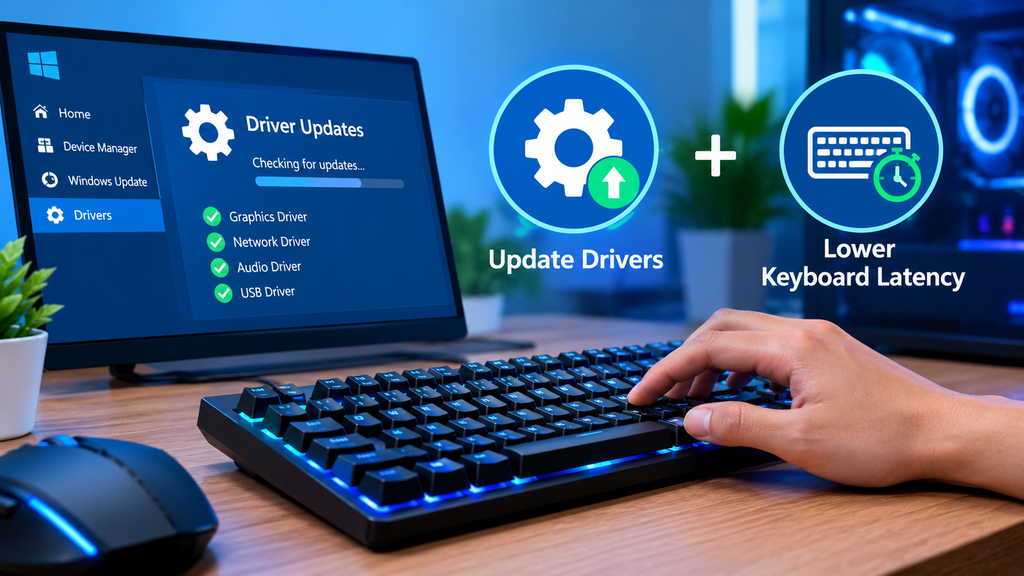
A computer can have good hardware and still feel slow, unstable, or less responsive. Sometimes the problem is not the processor, RAM, or graphics card. Software and connected devices can also affect how smoothly a Windows PC works. Outdated drivers, unnecessary background processes, poor device settings, and input delays can all make a computer feel less responsive.
This is especially noticeable when playing games. A small delay between pressing a keyboard key and seeing an action on screen can be frustrating in fast-paced games. Similarly, outdated hardware drivers may cause crashes, connection problems, sound issues, graphics glitches, or other unexpected errors.
The good news is that many of these problems can be checked without immediately replacing your hardware. Keeping important drivers updated and testing keyboard response can help you understand where performance problems may be coming from.
Why Drivers Matter for PC Performance
Drivers are software components that allow Windows to communicate with hardware. Your graphics card, keyboard, mouse, network adapter, audio device, USB controller, and many other components depend on drivers to work correctly.
When a driver becomes outdated, corrupted, or incompatible with another part of the system, you may notice different types of problems. A graphics driver issue can cause display glitches or game crashes, while a network driver problem may result in unstable internet connections. Similarly, problems with USB or chipset drivers can affect connected peripherals.
This is why it is useful to regularly update drivers when appropriate. Driver updates can include compatibility improvements, bug fixes, performance improvements, and support for newer hardware or software.
However, updating every driver without checking its relevance is not always necessary. Windows and hardware manufacturers may provide updates at different times, so users should focus on drivers that are important for their specific hardware and current problems.
Signs That Your Drivers May Need Attention
Not every computer slowdown is caused by outdated drivers. Still, certain symptoms can indicate that drivers deserve a closer look.
Common signs include:
- Frequent device connection problems
- Graphics glitches or unusual display behavior
- Audio cutting out or disappearing
- Wi-Fi or Ethernet connection issues
- USB devices not being recognized
- Unexpected system crashes
- Games performing poorly after an update
- Printers or other peripherals failing to work correctly
- Keyboard or mouse input behaving inconsistently
If a hardware problem begins after a Windows update, installing new hardware, or changing system settings, checking the relevant driver can be a sensible troubleshooting step.
How Driver Updates Can Help
Driver updates are designed to improve communication between Windows and hardware. For example, graphics driver updates can add support for new games and fix known compatibility problems. Network driver updates may resolve connection-related issues, while chipset and USB driver updates can improve communication with connected components.
IObit’s Driver Booster is one option designed to scan Windows PCs for outdated or missing drivers. Its current product information states that Driver Booster supports more than 18 million drivers and drivers from more than 1,200 major brands. It also provides tools intended to help with common device problems.
For users who have many devices installed, an automated scan can be more convenient than manually checking Device Manager and manufacturer websites one by one.
That said, it is still wise to create a restore point or use available rollback options before making significant driver changes. If a new driver causes an unexpected problem, being able to return to an earlier working version can make troubleshooting much easier.
Keyboard Response Is Another Part of PC Performance
Drivers are only one part of the overall PC experience. If your computer feels responsive but your keyboard seems slow, the issue may be related to input latency.
Keyboard latency is the delay between pressing a key and the system receiving or processing that input. The delay can come from several places, including the keyboard itself, its connection, firmware, drivers, system load, or other parts of the input chain.
For everyday typing, a small difference may be difficult to notice. In competitive gaming, however, even small delays can become more noticeable because players often need quick and consistent responses.
A keyboard latency test can provide useful information about how quickly your keyboard registers key presses. IObit’s online test records key presses in real time and reports information such as key latency, shortest key-press duration, and an estimated scan rate.
What Can Cause High Keyboard Latency?
There is no single reason for keyboard delay. Several factors can influence the response you experience.
1. Wireless Connection
Bluetooth keyboards can sometimes introduce more variable latency than wired connections. If you notice inconsistent input, testing the keyboard through a wired USB connection or a suitable 2.4GHz wireless connection may help determine whether connectivity is part of the problem.
2. Outdated Drivers
Keyboard, USB, and chipset drivers help Windows communicate with input devices. If these drivers are outdated, corrupted, or incompatible, keyboard communication may become unreliable.
Updating the relevant drivers can therefore be a useful troubleshooting step when keyboard input feels delayed.
3. High System Load
A PC running several demanding applications at once may have fewer resources available for processing input. Heavy CPU or memory usage can sometimes make the entire system feel less responsive.
Before blaming the keyboard, open Task Manager and check whether CPU, memory, or disk usage is unusually high. Closing unnecessary background applications may improve overall responsiveness.
4. Keyboard Firmware
Modern gaming keyboards often include firmware that controls functions such as key scanning, polling, and other device behavior. Manufacturers may release firmware updates to fix bugs or improve compatibility.
If your keyboard manufacturer provides official firmware software, check whether an update is available.
How to Test Your Keyboard Properly
Testing is more useful when you have a reason for doing it. For example, you may want to test a new keyboard, investigate unexpected input delay, or compare performance after changing your connection method.
Start by using the keyboard normally for a short period. Then run an online keyboard latency test and press different keys several times. Look for consistency rather than focusing on one isolated measurement.
IObit’s test displays key latency information and estimates the keyboard’s scan rate from the recorded input. The company also notes that an online browser test cannot measure every part of the keyboard’s internal hardware latency, so it should be treated as a practical indicator rather than a complete laboratory measurement.
This distinction is important. Browser-based measurements can help identify obvious differences, but they do not necessarily represent total end-to-end latency from the physical switch to the final image appearing on your monitor.
Ways to Reduce Keyboard Input Delay
If testing suggests that your keyboard response is slower than expected, try a few simple changes.
First, check the connection. If you are using Bluetooth, try a wired connection when possible. If your keyboard supports a 2.4GHz wireless mode, comparing it with Bluetooth can also be useful.
Next, check your keyboard’s polling or report rate. Some gaming keyboards allow users to choose different polling rates. A higher polling rate can reduce the interval between reports, although the actual benefit depends on the keyboard, system, and application.
You should also check for official firmware updates and make sure the relevant keyboard, USB, and chipset drivers are working correctly.
Finally, reduce unnecessary system load. Close applications that you do not need while gaming or performing other latency-sensitive tasks.
Combine Driver Maintenance With Performance Testing
Keeping a PC running well is easier when you approach performance problems systematically. Instead of changing many settings at once, test one area at a time.
For example, if a keyboard starts feeling delayed, first test its response. Then check the connection, firmware, drivers, and system load. After making one change, test again to see whether anything actually improved.
The same approach works for broader PC problems. If a game starts crashing, check graphics drivers and system updates. If Wi-Fi becomes unstable, investigate the network adapter and connection. If a USB device stops working, check the device, cable, USB port, and relevant drivers.
This method can prevent unnecessary changes and makes it easier to identify the real cause of a problem.
A Simple PC Performance Maintenance Routine
You do not need to spend hours maintaining your computer. A simple routine can help keep common problems under control.
Check important drivers: Look for relevant updates when you experience hardware problems or when manufacturers release important updates.
Monitor system usage: Use Windows Task Manager to identify applications consuming unusually high CPU, memory, or disk resources.
Test peripherals: If a keyboard, mouse, or other device feels slow or inconsistent, test it before replacing it.
Keep firmware current: Check the manufacturer’s official software for firmware updates for keyboards and other peripherals.
Restart after major changes: Driver and system updates may require a restart before changes work correctly.
Avoid unnecessary tweaking: More changes do not automatically mean better performance. Make adjustments based on an actual problem.
Final Thoughts
A fast PC is not only about having powerful hardware. Software maintenance, hardware drivers, device firmware, system resources, and input devices all contribute to how responsive a computer feels.
Regularly checking important drivers can help prevent compatibility and hardware communication problems, while keyboard response testing can help identify input-related issues. If your keyboard feels slow, a keyboard latency test gives you a simple starting point for investigating the problem.
Likewise, if you are experiencing device errors, crashes, connectivity issues, or hardware compatibility problems, taking time to update drivers can be an important troubleshooting step.
The most effective approach is to test before making major changes. Identify the symptom, check the most likely cause, make one change, and test again. With this simple process, you can often improve your Windows experience without immediately spending money on new hardware.
